
How to increase monthly fees
We often have discussions with our clients about how they price their services. How to align various costs to different lines of business, how to determine what to charge for each, and how to configure ConnectWise Manage put it in the right accounts while keeping the invoices clean and simple for the end-user. One of the more common areas of these discussions is pricing, and why it’s important to raise prices.
There’s no shortage of material in our industry that tells you build-in price increases to your service contracts, and there’s no shortage of reasons why. But there are two reasons that stand out to us: employee retention and cost increases.
Do you offer annual raises to your employees? How can you keep increasing wages if you don’t increase revenues? Increasing the number of clients is only part of the equation, as you will reach a capacity limit before your employees’ burnout. Likewise, vendors are increasing their costs each year. Rent, utilities, and the cost of the software tools you use to run your business and deliver services are examples. Both will drive your profits down.
We recommend that your service contracts include a clause that allows you to increase monthly fees by up to 5% each year. But rather than doing this on the anniversary of the agreement signing, do it on the same date each year, such as January 1st. This helps reduce the administrative work required to track which clients get increases in which month. You can include a condition that the contract must be a certain number of months old before a price increase can take effect, so as not to scare off a prospect who may think their price will increase one month after signing. Of course, have your legal counsel review any changes to your contracts before implementing them.
But how do you easily implement the price increases in ConnectWise Manage? Well, for agreement billing, there’s a really easy way to accomplish this. Just navigate to the Finance Menu > Agreements Screen > Additions Tab and filter by Active Agreement Status and Active Addition Status. Then click Search to see the results.
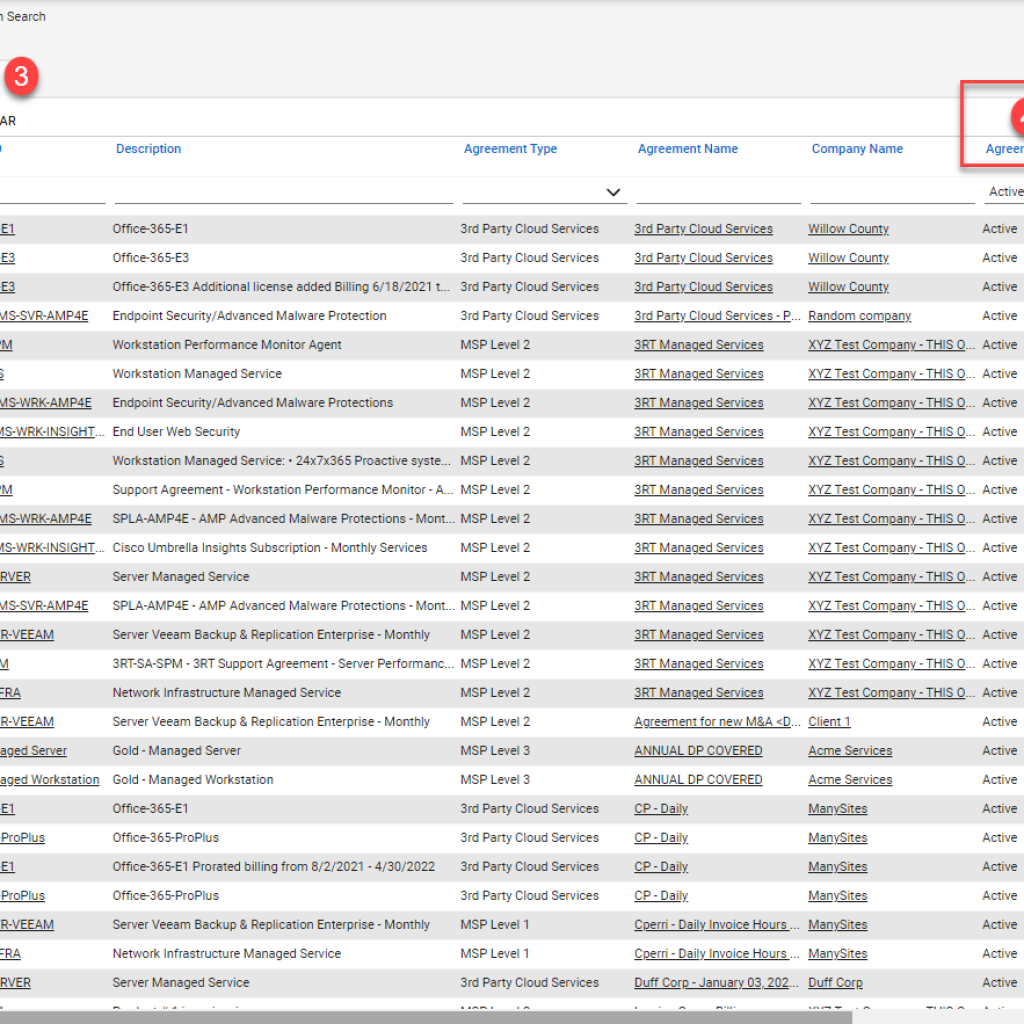
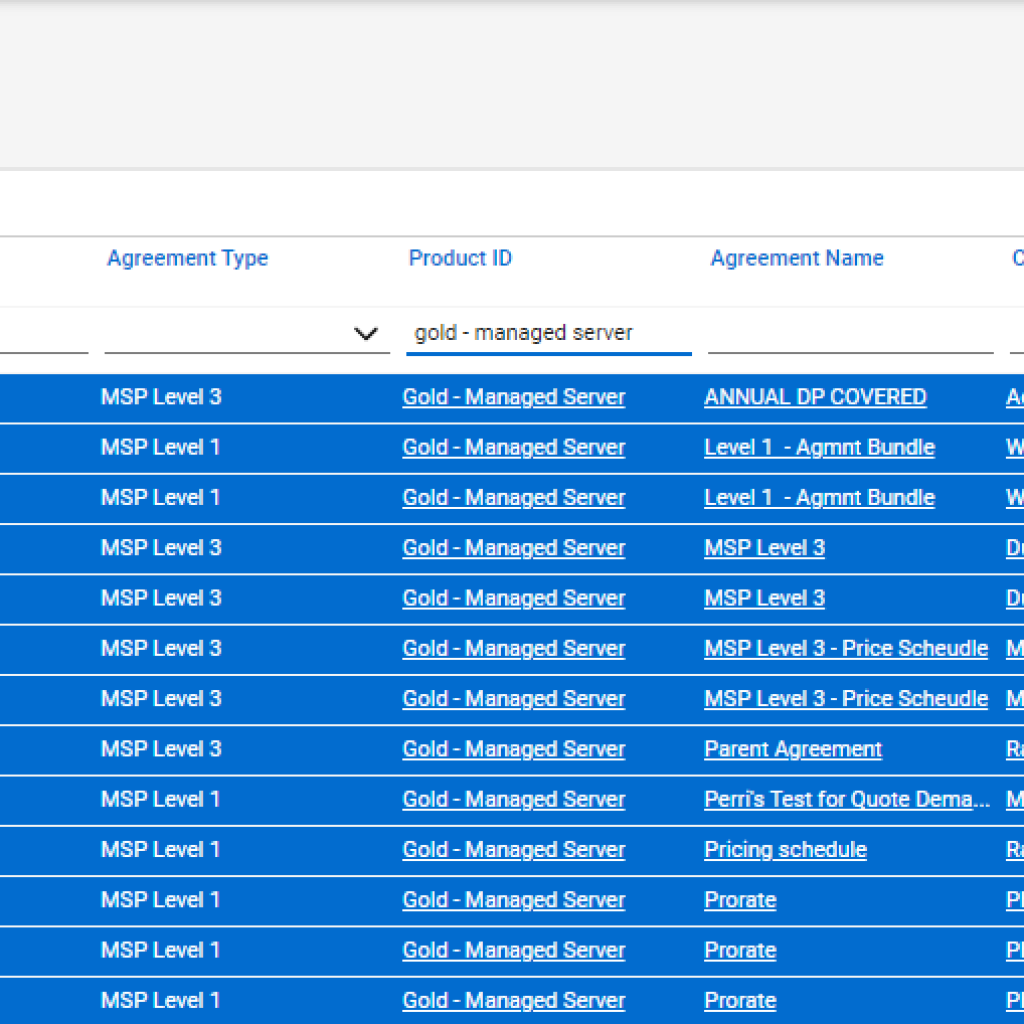
You can also filter by Agreement Type if you intend to only update pricing on a specific type of agreement. Additionally, you can filter by a specific Product ID or group of Product IDs by using a View.
Once you’ve filtered the results, select all the additions you will be updating pricing for and select Actions Menu > Adjust Unit Price. In our example here, we’ll be increasing the price for all Gold – Managed Server additions.
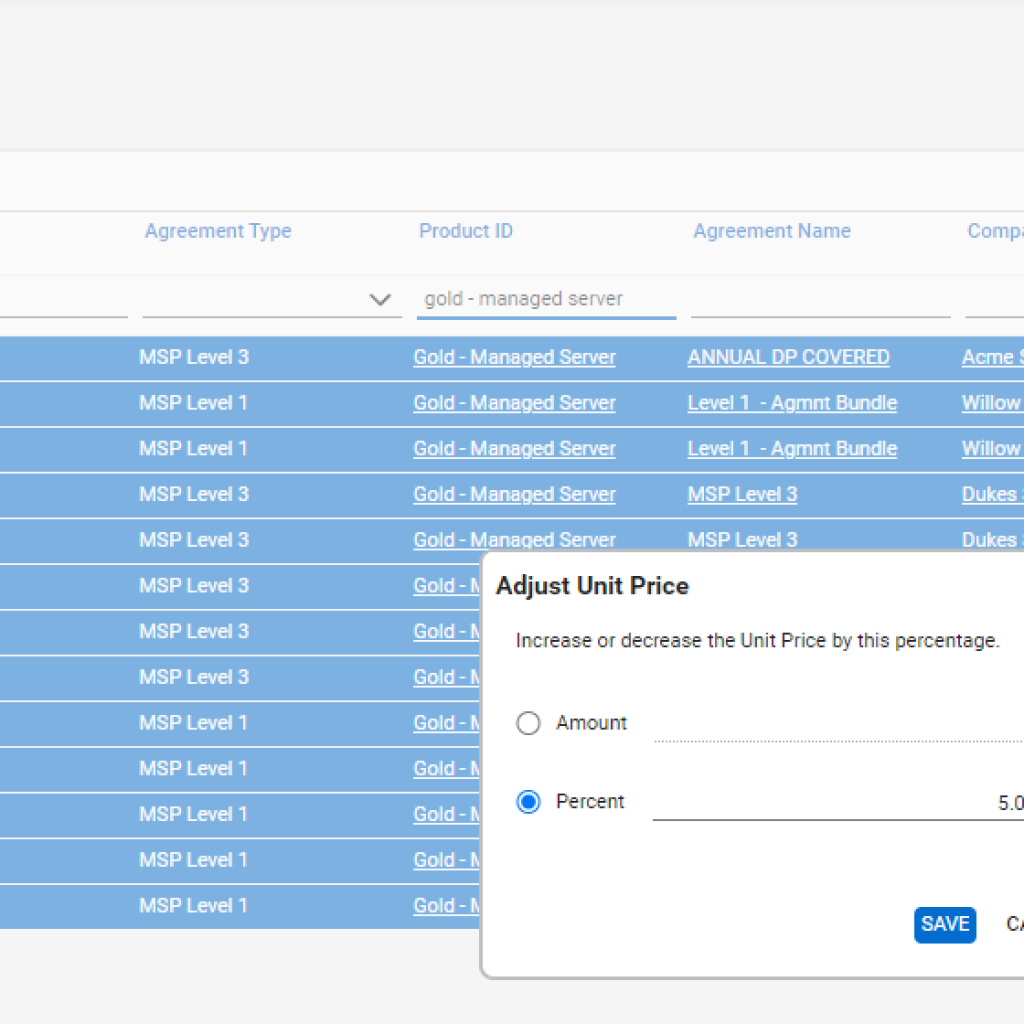
In the Adjust Unit Price pop-up, select either Amount or Percent, followed the value of the increase. Then click Save.
You can repeat this process for any other additions that need to have their price increased. We recommend that you plan out your increases before implementing the changes. For example, determine which Product ID should have an increase and by how much. Determine if there are any clients that will incur a different increase amount. You may find that all clients will have two different Product IDs increased by the same amount, but a third Product ID will increase by a different amount. Now you can filter the results by the first two Product IDs and update the pricing at one time. Then filter by the third Product ID and update those at once.
If you’d like to discuss how your pricing models can be optimized in a way that not only allows for a smooth process from Quote > Delivery but also builds in ways to scale and implement changes without having to recreate everything from scratch, click here to schedule a time to speak with one of our consultants.