Troubleshooting Workflow Emails | Taming the beast
Where is this workflow notice coming from?
Workflows are very valuable, and after a clear understanding of how they work, the tend to grow large. In the early stages, it was really simple to identify where an email alert was coming from, but after 20+ workflow rules are created, it becomes a beast.
What this tip will bring to it’s reader:
Grouping Workflow Rules.
Installing an Identifying method to determine what workflow rule a message came from.
Workflow Grouping:
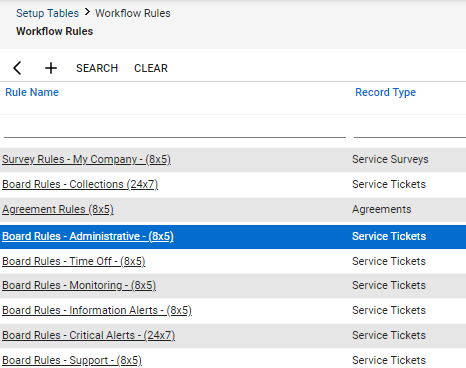
A Workflow Group (WFG) can hold multiple Workflow Rules (WFR). Grouping allows organization of the WFR. Here is an example.
WFG: Board Rules – <Board-Name> (24×7)
WFG: Board Rules – <Board-Name> (8×5)
Board Rules – Service (8×5) All WFR within this group, will only function in the 8×5 time frame, typically office hours.
Board Rules – Service (24×7) All WFR within this group, will function 24×7. WFR here could overlap the 8×5 group, so keep this in mind as the WFR’s are designed. Usually on-call notices or similar functions would run 24×7.
As shown to the right, organizing WFR’s into respective groups, such as a group for each service board.
Workflow Messages via Email
Many WFR’s are designed to send alerts using email. When the list becomes large, it becomes harder to figure out what WFR a message was sent from. Using the tip below will aid in identifying them.
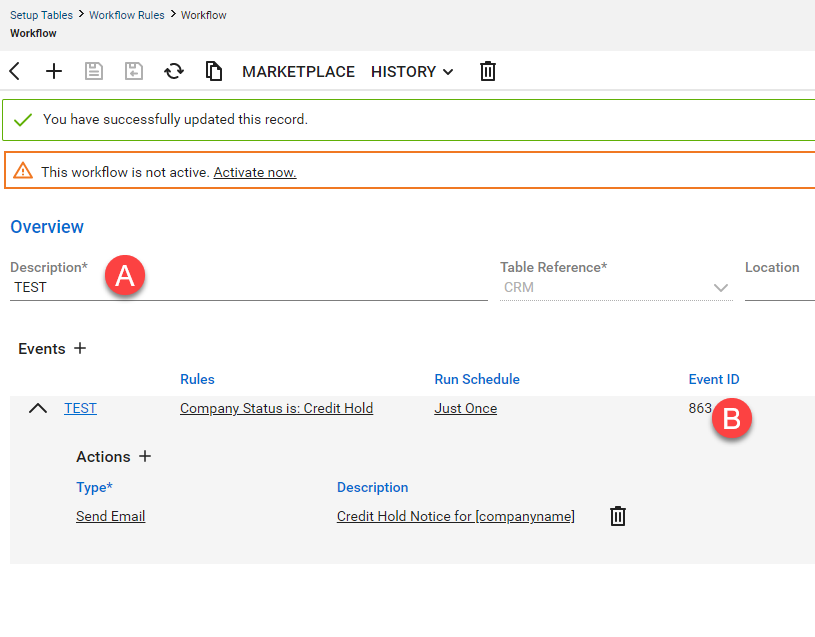
A. Workflow Group Name
B. Event ID of the individual Workflow Rule.
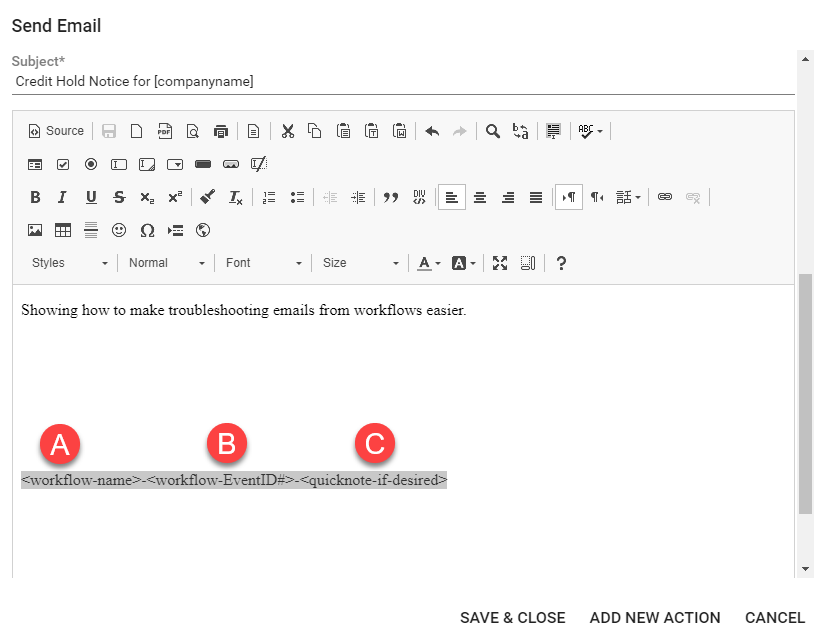
At the bottom of the email message template, add a line using the following suggestion:
A: The Workflow Group Name
B: The Event ID of the Workflow Rule
C: Any relative notes which might help in the ID part.
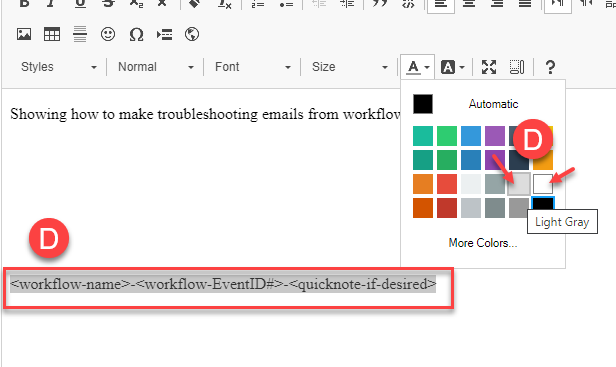
Also, change the text size to something smaller.
D: Select the entire line, Choose text color, select either very light grey, or to completely hide the line, select white.
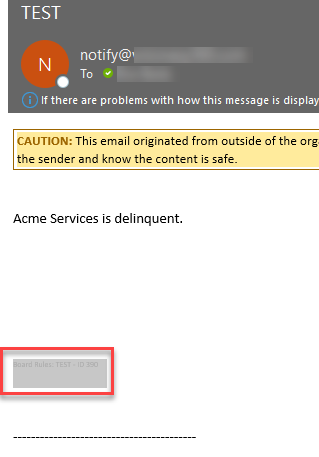
Now, when an alert email needs to be troubleshooted, simply highlight the bottom area to find the message, giving the WFG and WFR#.
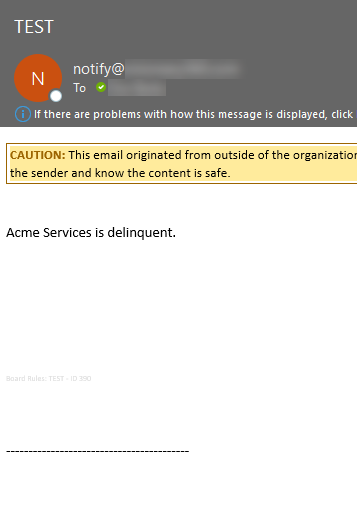
The screenshot shows the hidden message, before being highlighted.
Notice the line is slightly noticeable, but not standing out. This is because the text color chosen was a very light grey.
If white was chosen, then nothing would be visible until highlighted.
The screenshot shows the hidden message highlighted.
We hope this blog tip was useful. Please share with other members of your team or peer group members.
At Visionary 360, we’re a team of experienced business coaches who help Technology Solution Providers make the most of their tools with a strong focus on financial clarity.
We’re more than consultants. We’re partners who love solving problems, simplifying complexity, and turning frustration into progress. Our clients become part of the Visionary 360 family, and we take pride in celebrating their growth and success.
There’s no greater satisfaction than seeing a partner’s business thrive—streamlined, profitable, and confident in every step forward.