Selecting mass amounts of products, then updating at once.
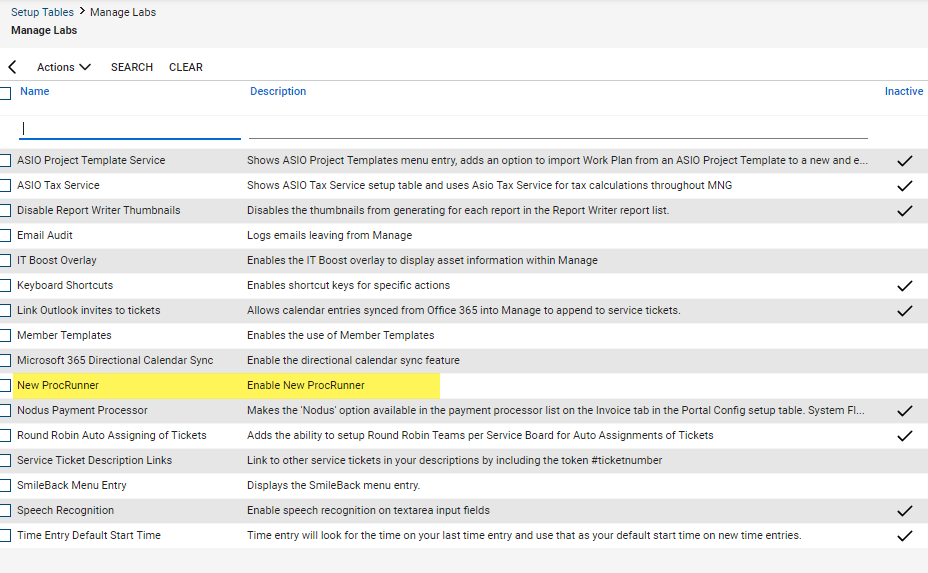
Proc Runner is a new enhancement for ConnectWise Manage PSA, however technically in “Pilot” stage as it is still listed in the Manage Labs. Pilot features have limited support as they are still being finalized by the development team. Manage Labs can be accessed at System > Setup Tables > Manage Labs.
Information about Proc Runner is very limited at the moment, but we’ll update this blog when more comes available. What we do know is that it’s main task is to speed up mass actions. Our consulting team have seen this in action and it does improve performance, kind of like upgrading from a 3 cylinder car to a 12 cylinder diesel power machine. This is an awesome feature, when it works.
Known Issue: There are a handful of current issues being worked on by the development team, however for this blog topic, we will address updating mass amounts in one setting. An error message may or may not be shown which makes troubleshooting harder. When an error is shown, the syntax will present sql error messages. This can be helpful when contacting support.
Resolution: 1. Disable Proc Runner for the duration of the mass updates. 2. Select small quantities instead of mass quantities.
Updating Agreement Addition products.
ConnectWise Manage PSA gives us the ability to update pricing in mass quantities, which is very helpful if pricing changes are global across the customer base.
Before performing mass updates within the Agreements module, please disable Proc Runner if enabled.
To disable Proc Runner, navigate to System > Setup Tables > Table: Manage Labs.
If active, select the check box to the left, then from the Action drop down menu, select Mark Inactive.
After doing the mass updates you may re-enable the New Proc Runner.
Note: While we have only experienced this with companies using QuickBooks Desktop, this should be disabled to be safe until ConnectWise irons out any bugs.
Click to Enlarge
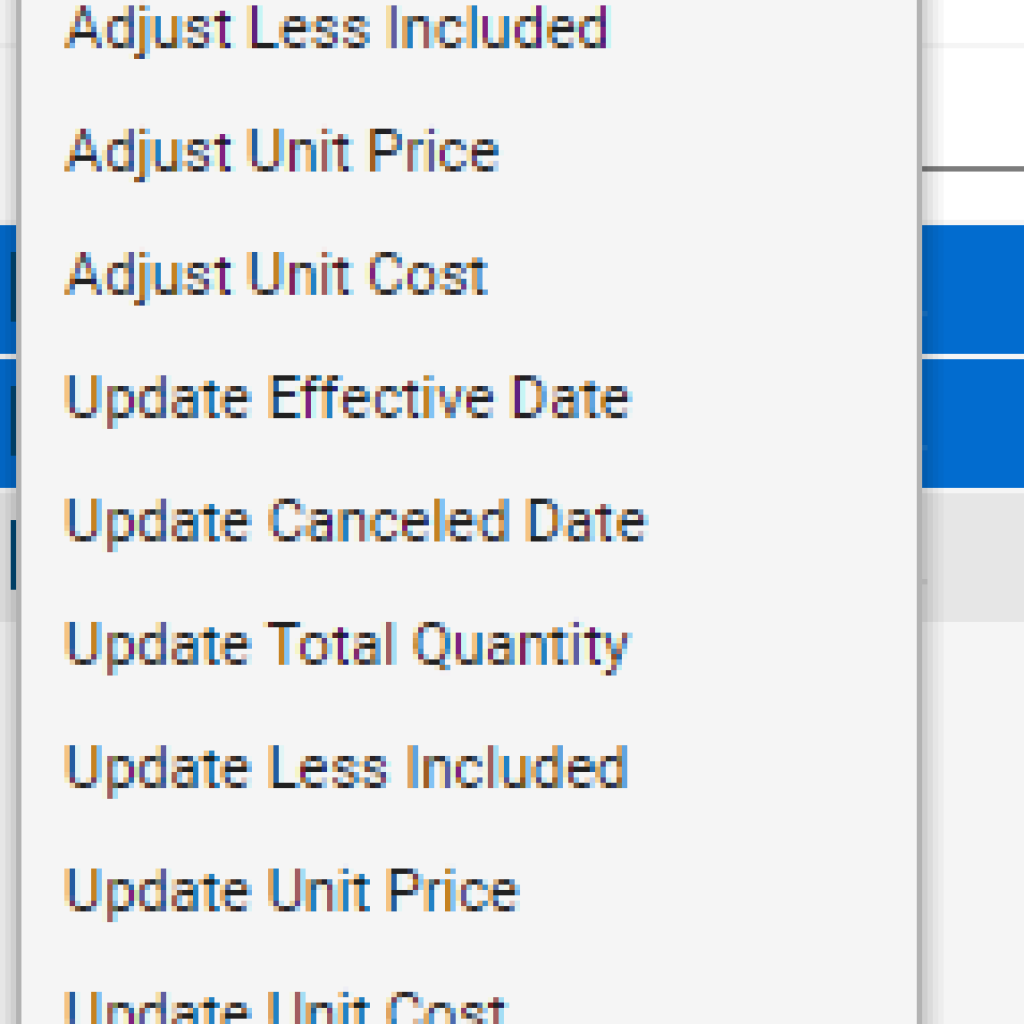
Located in Finance > Agreements > Additions Tab, is an action menu.
The available options for mass updating are listed in this area.
Most likely, one of these options will help with the required task(s).
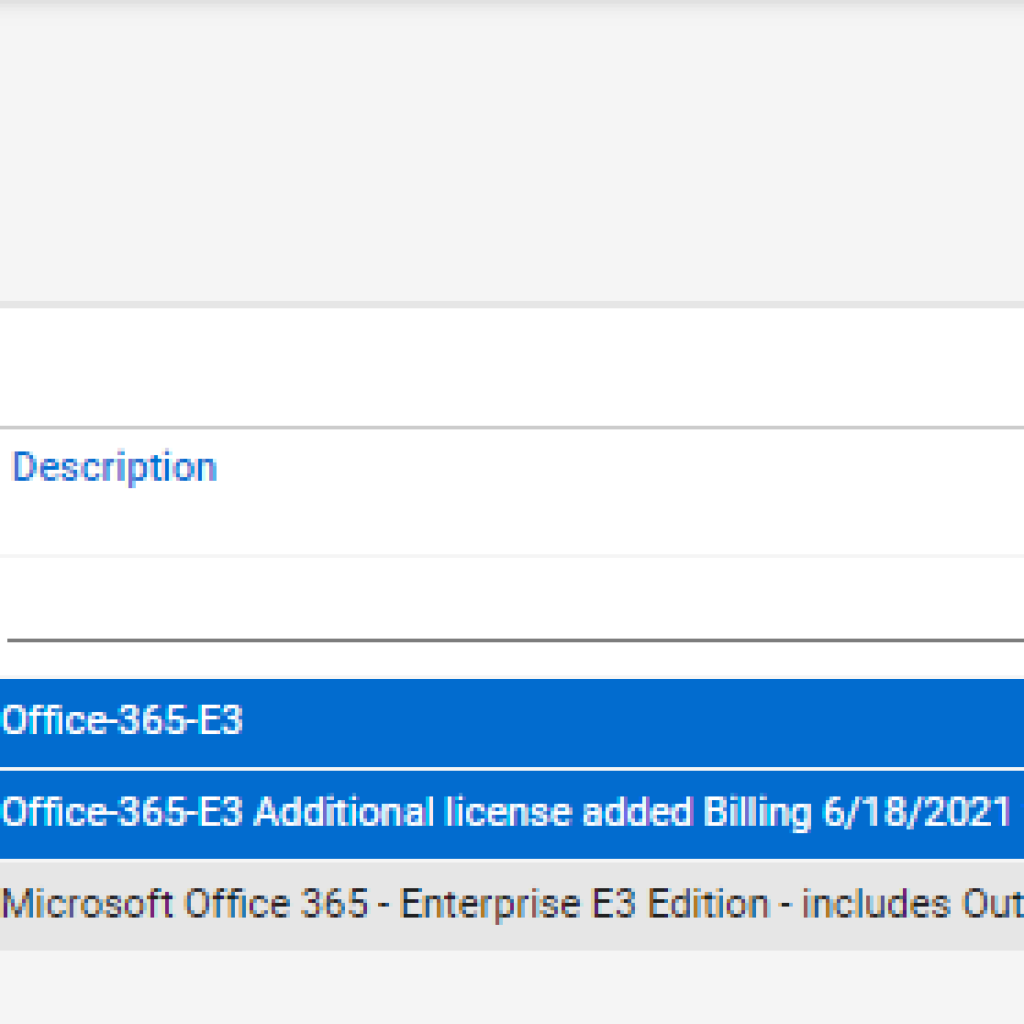
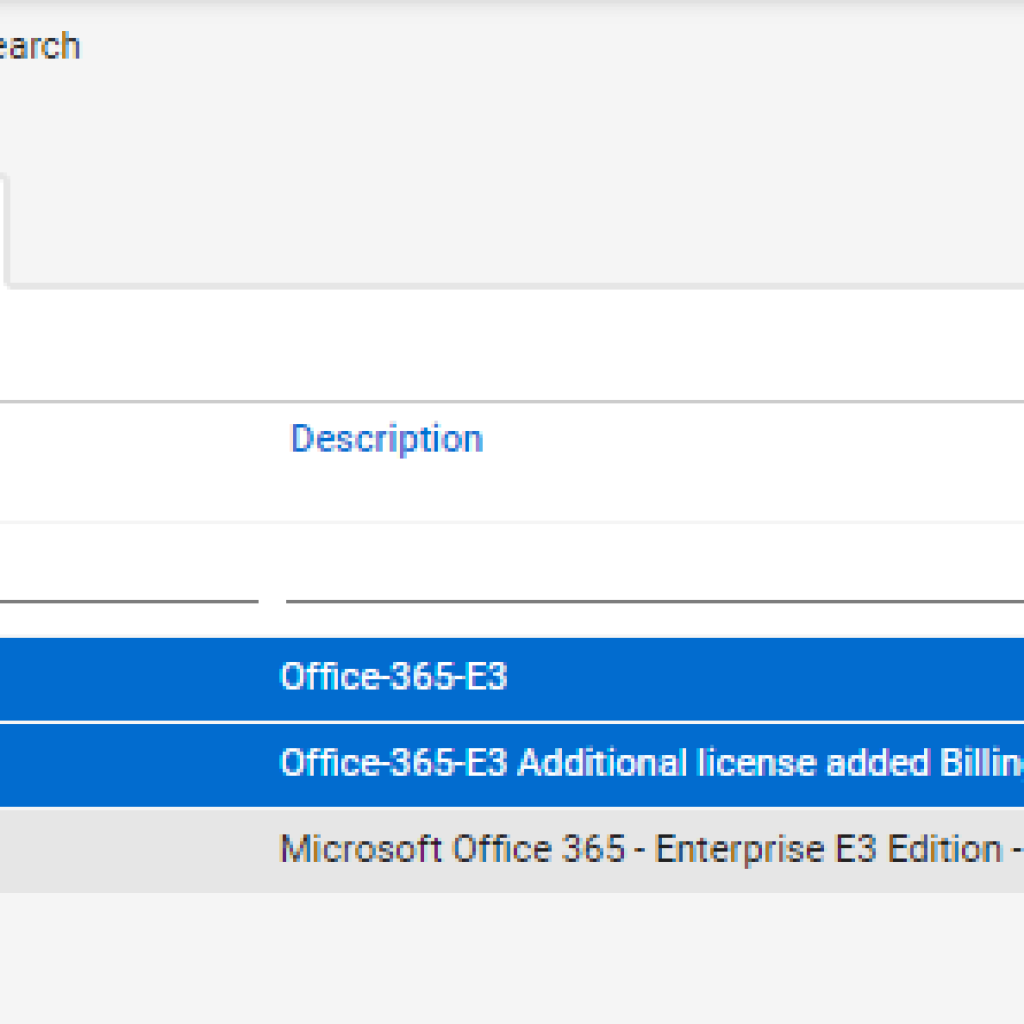
It’s best if we update each product separately. Start by filtering, using Product ID, and other columns if necessary. Start with smaller groups at first to make sure that the update process works as intended. After a group or two is found to update properly, then update the rest in mass.
From the actions drop down, select update <choose desired action>. In the pop-out screen, enter the required information then save.
Repeat the steps as required to complete your mission.
Why do we recommend this method? Should there be an error, there is no master method to show which items were updated or failed. Starting with smaller groups allows the ability to test, verify, troubleshoot, and resolve any issues.
At Visionary 360, we’re a team of experienced business coaches who help Technology Solution Providers make the most of their tools with a strong focus on financial clarity.
We’re more than consultants. We’re partners who love solving problems, simplifying complexity, and turning frustration into progress. Our clients become part of the Visionary 360 family, and we take pride in celebrating their growth and success.
There’s no greater satisfaction than seeing a partner’s business thrive—streamlined, profitable, and confident in every step forward.