

Custom Service Catalogs | ConnectWise PSA Customer Portal

Many ConnectWise partners are choosing to tailor the customer experience by creating custom service catalogs linked to specific customers. This customization allows partners to provide a personalized and targeted range of services that align with each customer’s unique requirements. Here’s how this approach can be beneficial:

  1. Customized Service Offerings: By creating custom service catalogs, partners can curate a selection of services that directly address the specific needs and preferences of each customer. This tailored approach demonstrates a deep understanding of the customer’s business and showcases the partner’s ability to provide relevant solutions. Customers appreciate having access to services that are specifically designed to meet their requirements, increasing their satisfaction and loyalty.

  2. Simplified Service Selection: Custom service catalogs make it easier for customers to navigate and select the services they need. Instead of browsing through a generic catalog with a wide range of options, customers can quickly locate and choose from a focused list of services that are relevant to their industry, business size, or specific challenges. This simplification streamlines the service selection process and saves customers time and effort.

  3. Limited exposure: Using security based audience settings, Custom service catalogs can be tailored to only show for a specific customer, and matching  security role.  Full Admin, Ticket Manager or Billing Admin are the usual selections.  More than one security role can be assigned.

To create service catalogs in the new ConnectWise Customer Portal with targeted audiences, you can follow these steps:

  1. Log in to the ConnectWise Customer Portal using the Admin URL.

    For North America: https://customerportal-admin.myconnectwise.net/

  2. Login using your credentials.  (Must have “Portal” Full Admin rights for portal)

    1. In the Setup Tables screen, click on the “Service Catalog” tab.

    2. Click on the “New” button to create a new service catalog item.

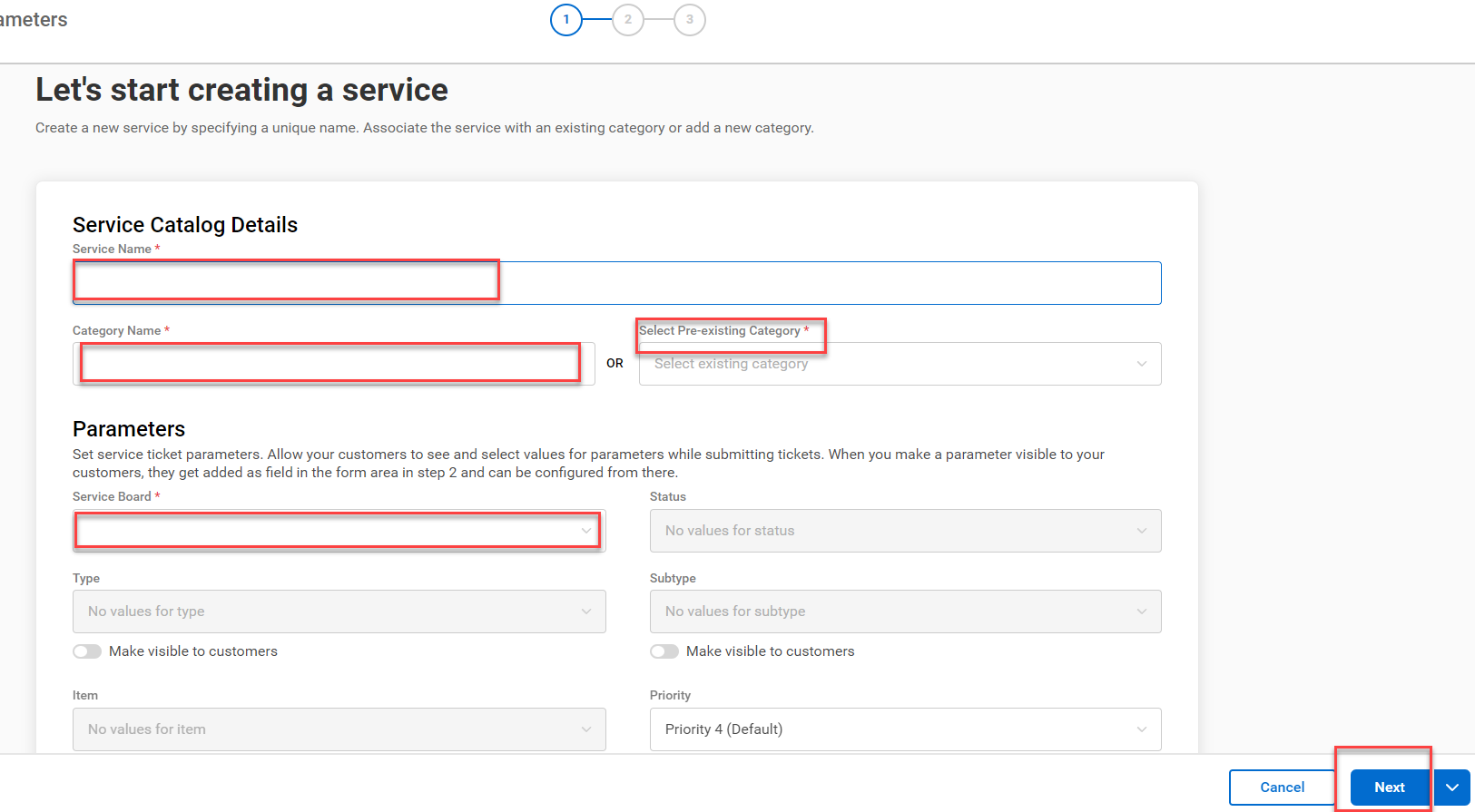
    3. Fill in the details for the new service catalog item, including the title, Category Name (or select an existing), the service board to be used for ticket creation, and any other values (no suggested) to complete this page.
 

Fill in the details for the service catalog item:

  • Service Name
  • Category Name (or choose an existing)
  • Service Board – What board is to be used when creating tickets for this item?
  • Other Values – Select as required to even further enhance the automation aspect for this form.


Click Next

Click to enlarge

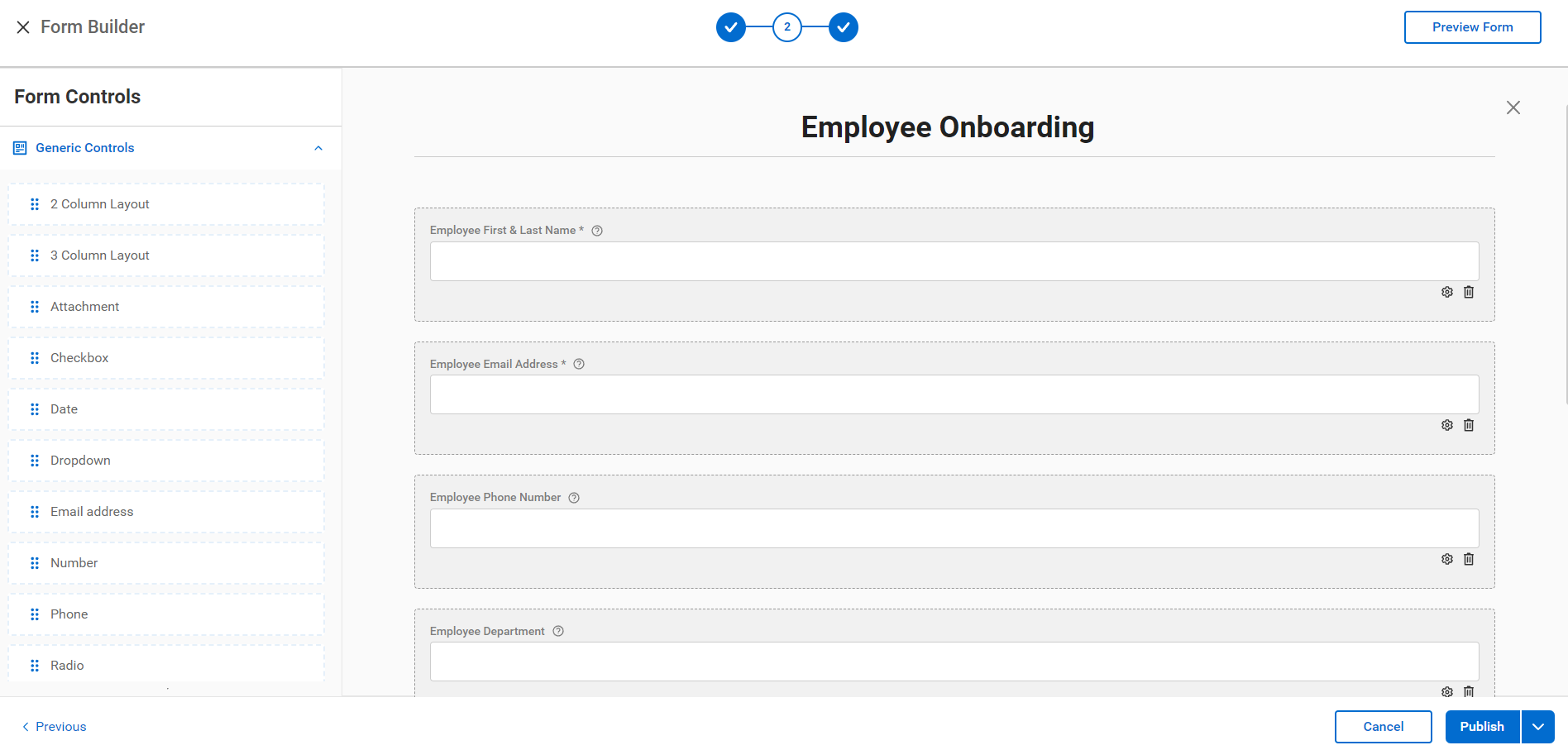
Drag selections from the left side into the form area.


TIP:  Create pages to separate functional areas.  Create the pages by functional group.  This example shows how multiple pages can be used for a customized employee onboarding:

  • Employee information, start date, and other HR related information.
  • Email setup
  • Phone setup
  • Required software
  • Required hardware
  • Required network access
  • Misc. informational notes
Click to enlarge

Time to tailor our “Audience”, the term used by ConnectWise to determine who has the ability to access this Service Catalog. 

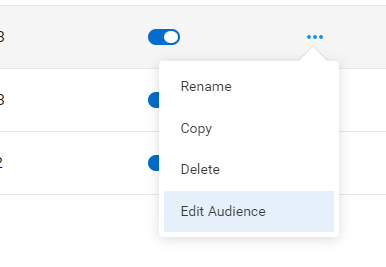
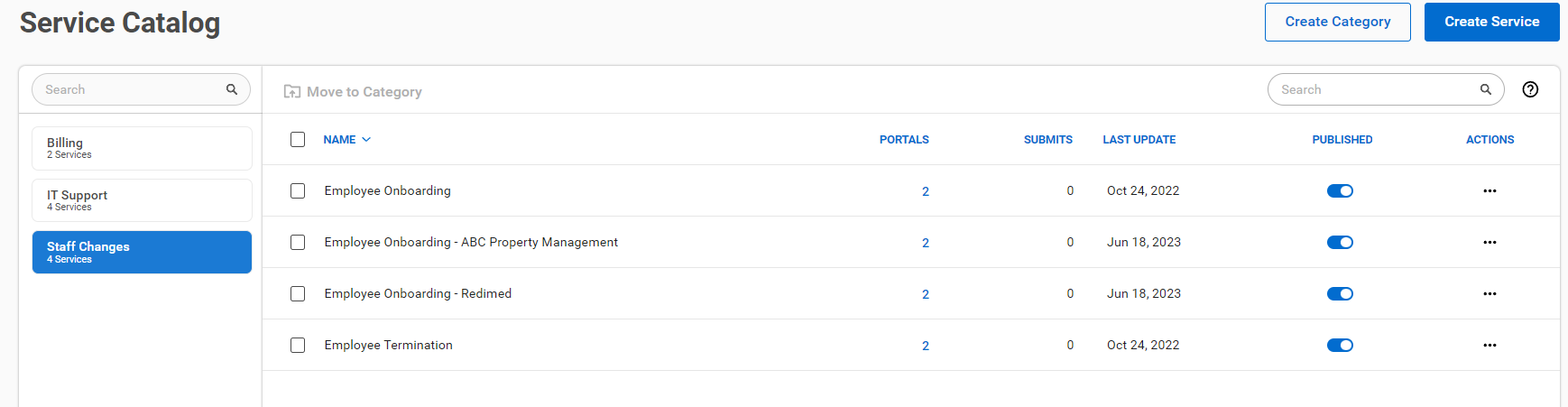
Find the three dots to the right of the Service Catalog, select “Edit Audience”.

Click to enlarge

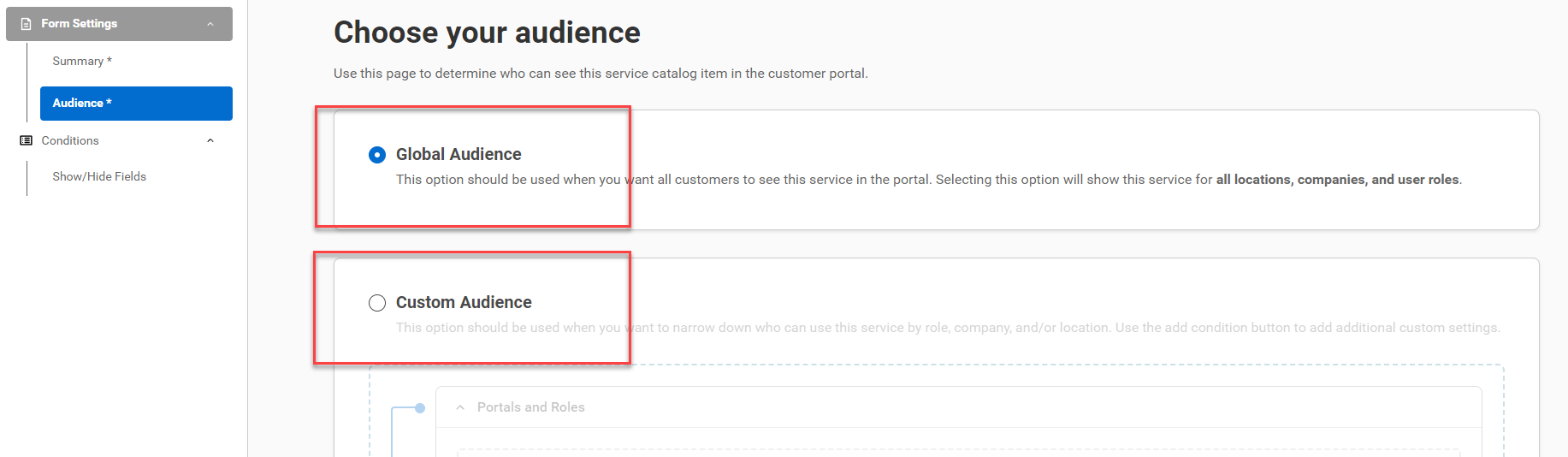
In the “Audience” section, you can specify the targeted audience for the service catalog item. You can choose from options such as “Global Audience” All Customers, “Custom Audience” Specific Companies/Security Roles.

If you select “Global Audience,” there is no more customization as the Service Catalog will be available to everyone, no matter what role they have been assigned.

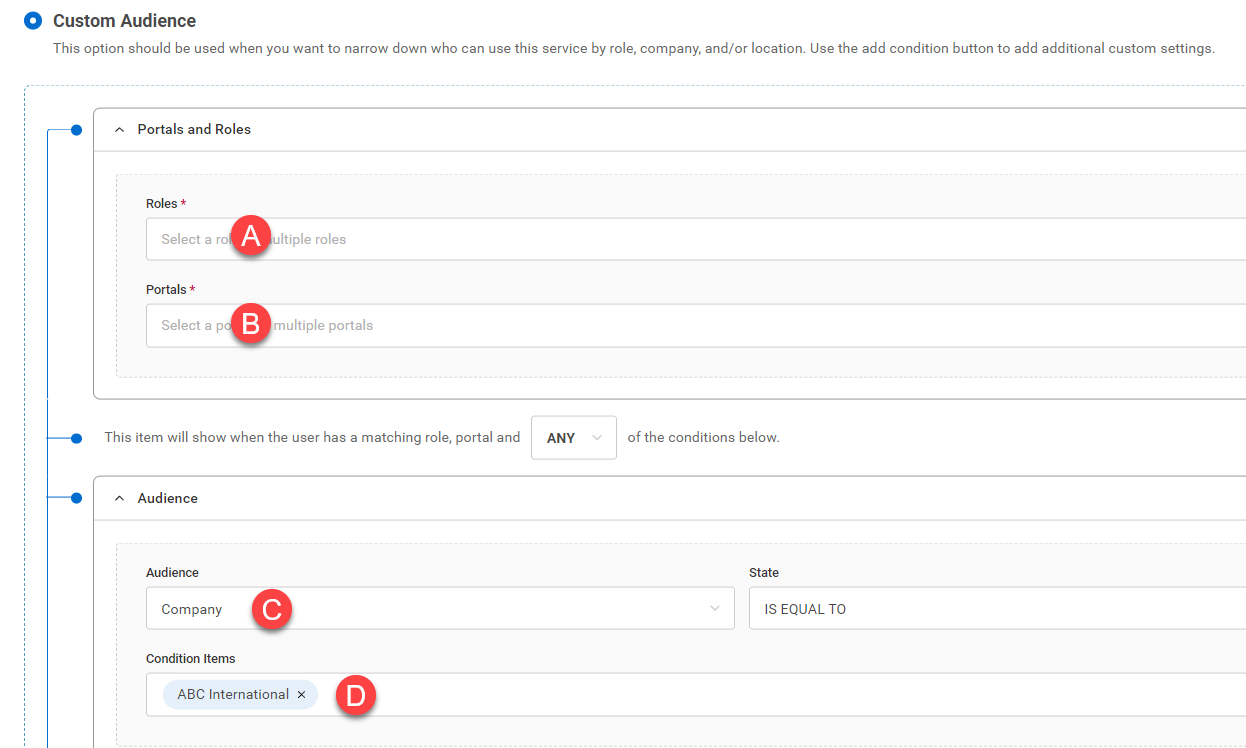
If you select “Custom Audience,” you can choose from the following selections”

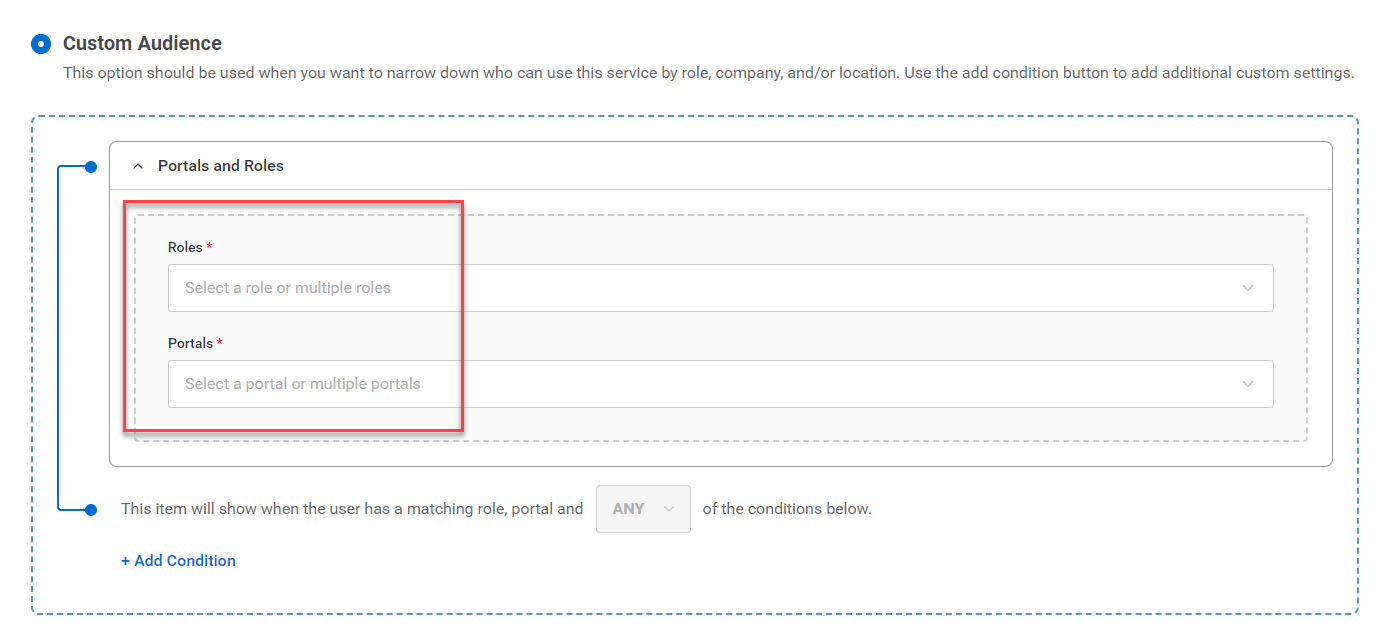
Portals and Roles:

  • Roles: What security roles should be allowed to access this Service Catalog?
  • Portals:  Custom custom portal, StreamLine IT companies may have their own portal.  “All portals” is the suggested default selection.
Click to enlarge
Click to enlarge

Condition:

It is desired to only allow ABC International to have access to this Service Catalog.

  • Set the Audience to “Company
  • Select the company “ABC International” from the search area.

End Result:

For our example, the completed Custom Audience layout would look like this.

Click the Publish button at the lower left corner to finalize this setup.

Click to enlarge

Repeat the above steps to create additional service catalog items with different targeted audiences as needed.

Conclusion:

By configuring the targeted audience for each service catalog item, you can control which roles or companies can view and access specific services in the ConnectWise PSA Customer Portal. This allows you to tailor your service offerings to different groups of customers based on their needs and preferences.

Click to enlarge
Share this article on social media

About Visionary 360

At Visionary 360, we’re a team of experienced business coaches who help Technology Solution Providers make the most of their tools with a strong focus on financial clarity.

We’re more than consultants. We’re partners who love solving problems, simplifying complexity, and turning frustration into progress. Our clients become part of the Visionary 360 family, and we take pride in celebrating their growth and success.

There’s no greater satisfaction than seeing a partner’s business thrive—streamlined, profitable, and confident in every step forward.

Your ideas inspire our next articles

Tell us what you’d like to read next!

Never Miss a Tip That Could Save You Time

Get notified when we post new ways to streamline your PSA and RMM systems.

New