
If you’re using ConnectWise Manage/PSA, you likely rely on email connectors to create tickets automatically. You might also use parsing rules to guide how ConnectWise handles new tickets based on email subject lines.
But did you know that ConnectWise PSA email connectors can also update existing tickets through email tags? By including a special tag in the body of an email, the connector can identify key information and apply it to update an existing ticket in Manage PSA.
There are a few basic requirements for email tags to work properly:
- The sending email cannot use an address associated with an API member or an external address. The sending email must be associated with a regular ConnectWise PSA member
- The service ticket number must be contained in the subject of the email and use one of the formats below:
| Name | Age | Phone | |
|---|---|---|---|
| Ticket #[srnumber]/ | Ticket # [srnumber]/ | Ticket#[srnumber]/ | Ticket# [srnumber]/ |
| Ticket #[srnumber] | Ticket # [srnumber] | Ticket#[srnumber] | Ticket# [srnumber] |
| SR #[srnumber]/ | SR # [srnumber]/ | SR#[srnumber]/ | SR# [srnumber]/ |
| SR #[srnumber] | SR # [srnumber] | SR#[srnumber] | SR# [srnumber] |
- Email connector tags are not supported for project tickets.
- Email connector tags can not be stacked – one tag per email.
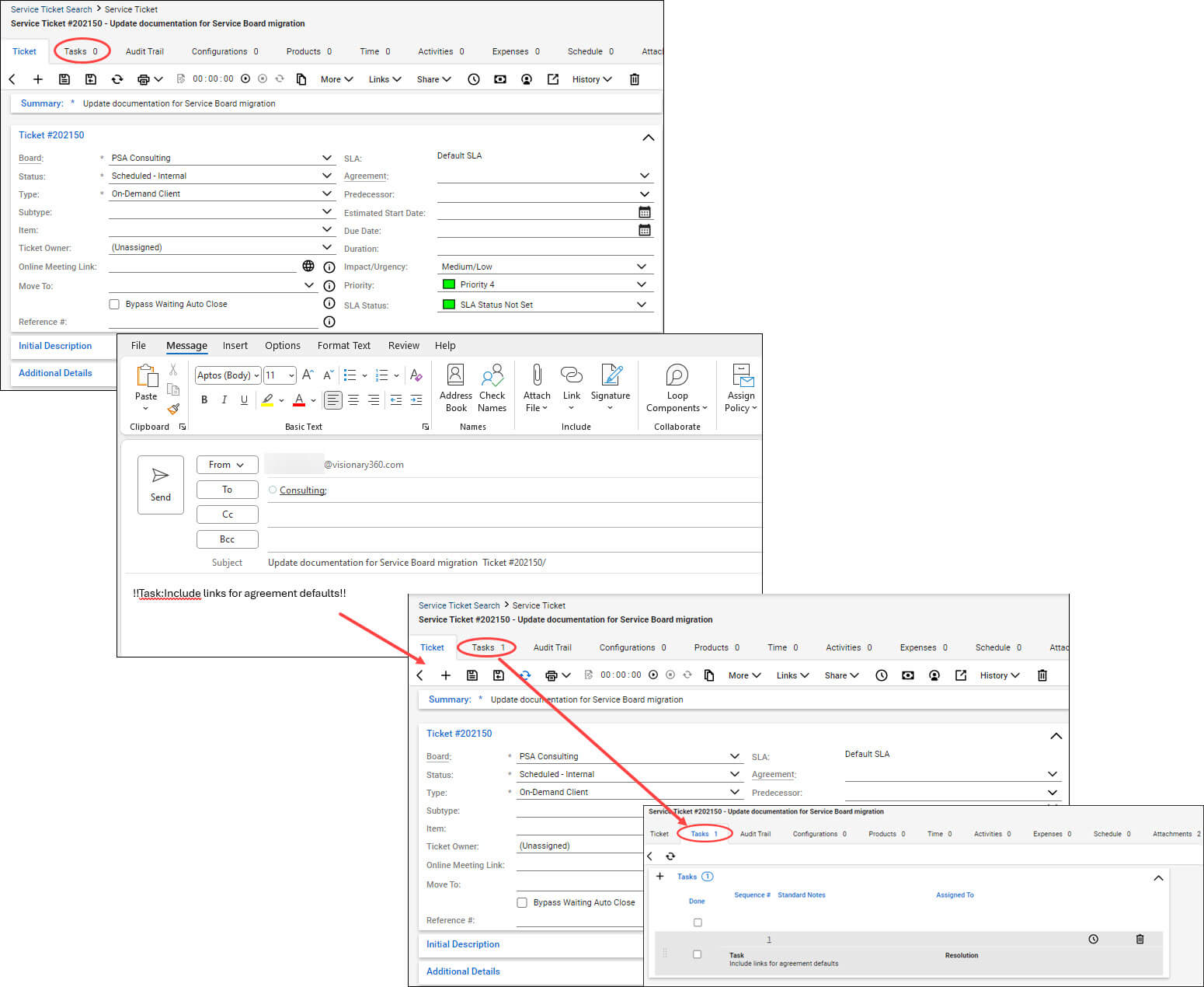
In the example below, an email connector email tag is being used to add a task to an existing ticket.
The initial ticket does not have any associated tasks.
By sending an email to the email connector address with the “AddTask” email tag, the ticket is updated with the task information.
Email tags are a great way to capture information in an existing ticket without having to log into the application.
Using Email Tags Workflow Rules:
Another practical use for email tags is in workflow rules. Let’s say you want to assign a specific resource to a ticket when certain ticket parameters are met. Sure, this could be accomplished with a ticket template, but ticket templates require a ticket type/subtype/item and an existing ticket template setup. Use a workflow rule, in combination with an email tag, to get the job done.
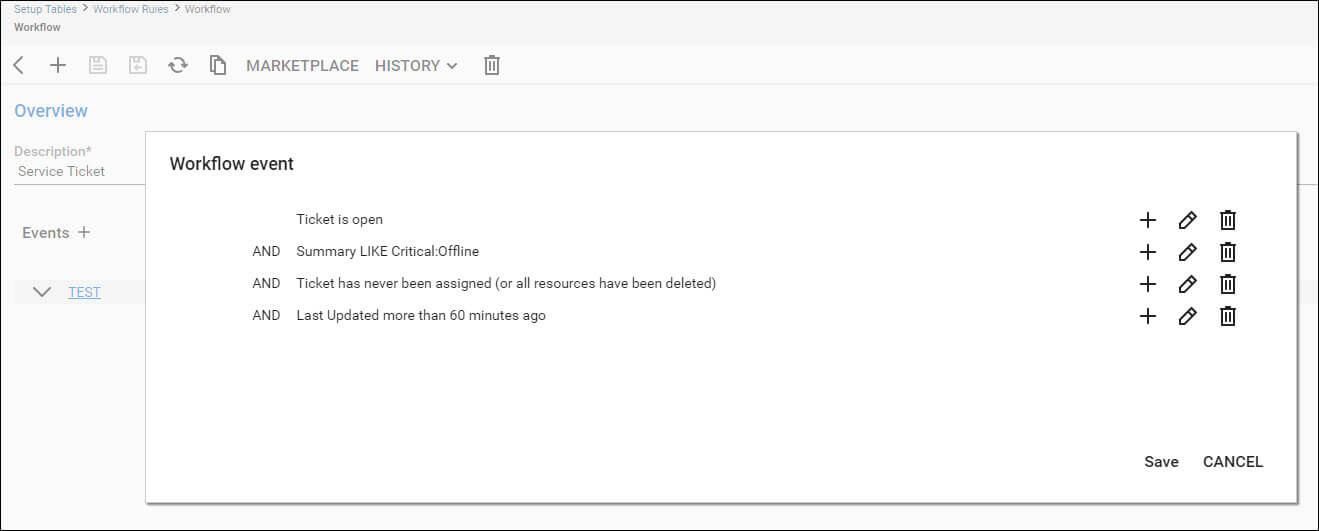
In the example below, the workflow rule is looking for tickets that have specific keywords in the summary, have no resources assigned, and have not been updated in 1 hour.
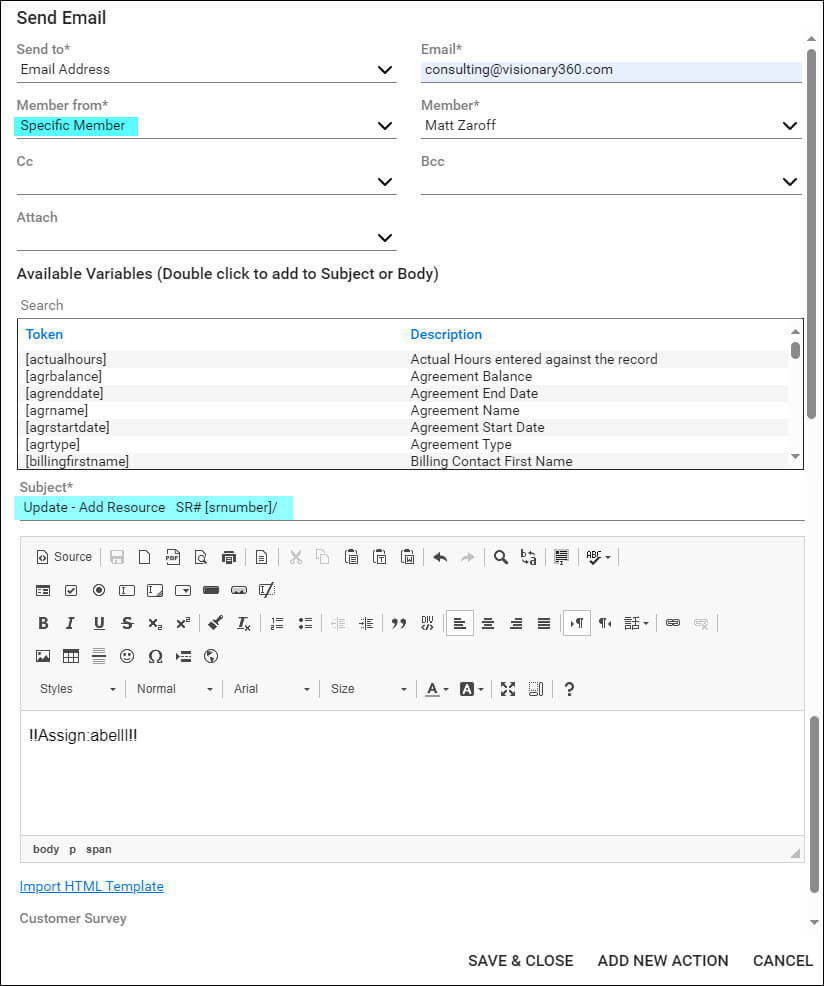
When the workflow identifies tickets which meet these criteria, the action will be to send an email to the email connector and assign a specific resource thus assuring this ticket will not get lost or forgotten.
The sending email address must be a licensed member address* and the ticket number must be in the email summary.
The current list of email tags can be found here.
Using Email Tags with Outlook:
If you find yourself using certain email tags frequently, and you are using Outlook as your email client, add them as “Quick Parts” for easy access.
- Open a new blank email.
- Add the frequently used email tag to the body of the email.

3. With the complete text of the email tag highlighted, select Insert > Quick Parts > Save Selection to Quick Part Gallery.

4. In the Create New Building Block window, update and complete the fields.
5. Add a name to identity the tag.

6. In the Category field, select Create New Category.

7. Name the new category Email Tags.
8. Update the Description field with details to describe the email tag

9. Your frequently used email tags will be available to use any time under the Quick Parts menu.

Continue to check out Visionary 360’s blog for more tips, tricks, and best practices for leveraging the ConnectWise suite of products.