ConnectWise Automate | Dark Mode

Many prefer the Dark Mode when available.  The Automate Control Center Desktop Client actually has Dark Mode functionality built in.  Let’s see how to enable this mode.

Before:
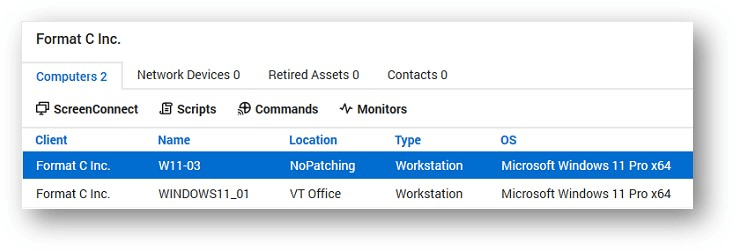
ConnectWise Automate Default Visual Mode (White)

After:

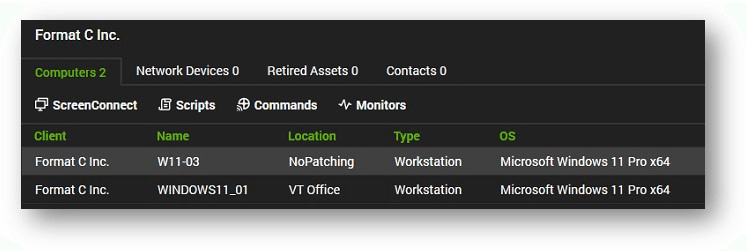
ConnectWise Automate Dark Mode Activated

How to Activate

  1. Click your profile icon at the top right-hand corner of your screen.
  2. Select ‘Preferences’.

How to Activate

  1. Set theme to ‘Dark’.
  2. Save.

That is all it takes to implement the Dark Mode.  May the Dark Mode Force be with you.

Share this article on social media

About Visionary 360

At Visionary 360, we’re a team of experienced business coaches who help Technology Solution Providers make the most of their tools with a strong focus on financial clarity.

We’re more than consultants. We’re partners who love solving problems, simplifying complexity, and turning frustration into progress. Our clients become part of the Visionary 360 family, and we take pride in celebrating their growth and success.

There’s no greater satisfaction than seeing a partner’s business thrive—streamlined, profitable, and confident in every step forward.

Your ideas inspire our next articles

Tell us what you’d like to read next!

Never Miss a Tip That Could Save You Time

Get notified when we post new ways to streamline your PSA and RMM systems.

New